Want to get rid of those ugly avatar pictures when you comment on your site? Well the easiest way to do this is by adding a personal image. To do this you will have to install a plugin and edit your user. Follow these easy steps to add a personal picture as your user avatar.
First, Let Me Show You What I am Talking About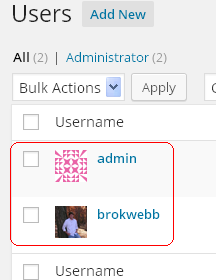
Instead of having the avatar picture, which is what I have as my admin picture. You can add a personal picture to a user, as you can see under the brokwebb user name. This picture will show up if you have an author section on each post and will also show up each time you comment on your site.
How To Add A Personal Picture To A WordPress User
- We need to install a new plugin. Click on Add new Plugin under the plugin section of the side bar (left side).
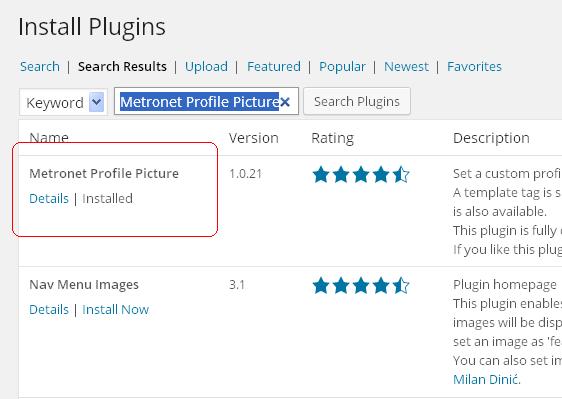
- In the Search bar Type: Metronet Profile Picture. and press search.
- The first plugin that on the list should be Metronet Profile Picture under the name click on “Install”.
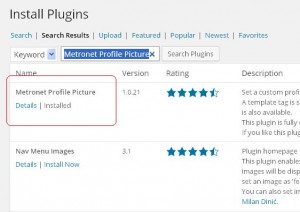
STEP 3 - After you Press “Install” you will be redirected to a page that will say “activate this plugin” click there.
- Once it says “Plugin Activated” Click on the Users Section of the side bar.
- Click on “edit” under the user you would like to add a picture to.
- You will now see a place to upload a picture from you computer.
- Once you upload your picture it should appear. Make sure to check the box by “override avatar”
- Then Click Update Profile at the bottom of the page.
- If you visit one of your pages or post with comments your comment should now show up like this.

After completing these steps you should now have a personal user picture. This will help make your comments stand out and let visitors see that you are responding to comments. If you have any questions please comment below.
Struggling with Adding A New User? Learn How To Add A New User
This is one option. I prefer to use Gravatar though. This way whenever you use your email address on any blog across the internet, your picture will show up. This is what most people use.
Jay,
Thanks for the comment. I will do some research on that! Looks like your picture showed up on your comment. I will update the post to have that as an option as well!
Thanks,
Brok
Hi Jay! Thanks for your post on How to add a personal picture to a wordpress user, it is really well explain and it help me big time!
It is actually my post, but Thank you for the kind words lol Best of luck to you!
Thanks,
Brok
Like Ray said, I prefer to use Gravatar because that’s the only thing I had heard of.
Thanks for letting me know about the alternative.
Your Welcome. I appreciate you letting me know about Gravatar had never heard of it before this.
Thanks,
Brok
Hi Brok,
This was very helpful. Worked like a charm! Thanks for the clear tutorial!
Kris,
I am glad I could help! Check back for more tutorials in the future.
Brok
Wow!! Thanks for the tutorial this help me tremendously. Keep up the good work my friend!
J Soto,
Glad I could help!
Brok
Thanks for help Brok, I got it working in just a few mintues! Great post. 🙂
Danny,
Glad I could help you get it set up!
If you need any other help let me know!
Brok